Most people see Revit as a modelling tool for creating walls, floors, sheets, schedules, and documentation. They learn the commands, build the model, and get used to spending hours on tasks like rendering, feasibility studies, layout options, and documentation.
That is changing.
In 2026, professionals are using AI tools directly within Revit to speed up these tasks. These are not general AI chatbots. They are plugins that work with Revit and help with real project work. Renders that once took days can now be created in minutes. Feasibility studies that took weeks can be completed in an afternoon, while many documentation tasks can be automated.
At ASDAV, our students want to understand how professionals actually use Revit today, including how AI fits into the workflow.
If you are learning Revit or already working with it and want to know which AI plugins are worth considering, this guide compares five of the best AI plugins for Revit, covering what each tool does, how it works with Revit, and what it costs.
If you want to build a strong Revit and BIM foundation, you can also enroll in our Revit and BIM Certification Course, where live projects teach the workflows these tools help you complete faster.
The 5 Best AI Plugins for Revit, Compared
Every plugin below runs inside Revit or hands work directly back to it. That filter matters: plenty of AI design tools exist, but most of them export an image or a file and leave you to rebuild the work.
The five here keep your model as the source of truth. They cover the five places AI actually saves time in a Revit workflow: visualisation, feasibility, layout generation, documentation and everyday task automation.
1. Veras by Chaos: AI Rendering Inside Revit
Veras is the most widely praised AI plugin for Revit, and for a simple reason: it renders from your actual model geometry instead of from a screenshot.
Most AI render tools take a flat image, send it to a generative model, and return something pretty that no longer matches your building.
Veras uses your Revit 3D view as the geometric base and applies lighting, materials, mood and environment through diffusion-based prompts, so the result still looks like your project.
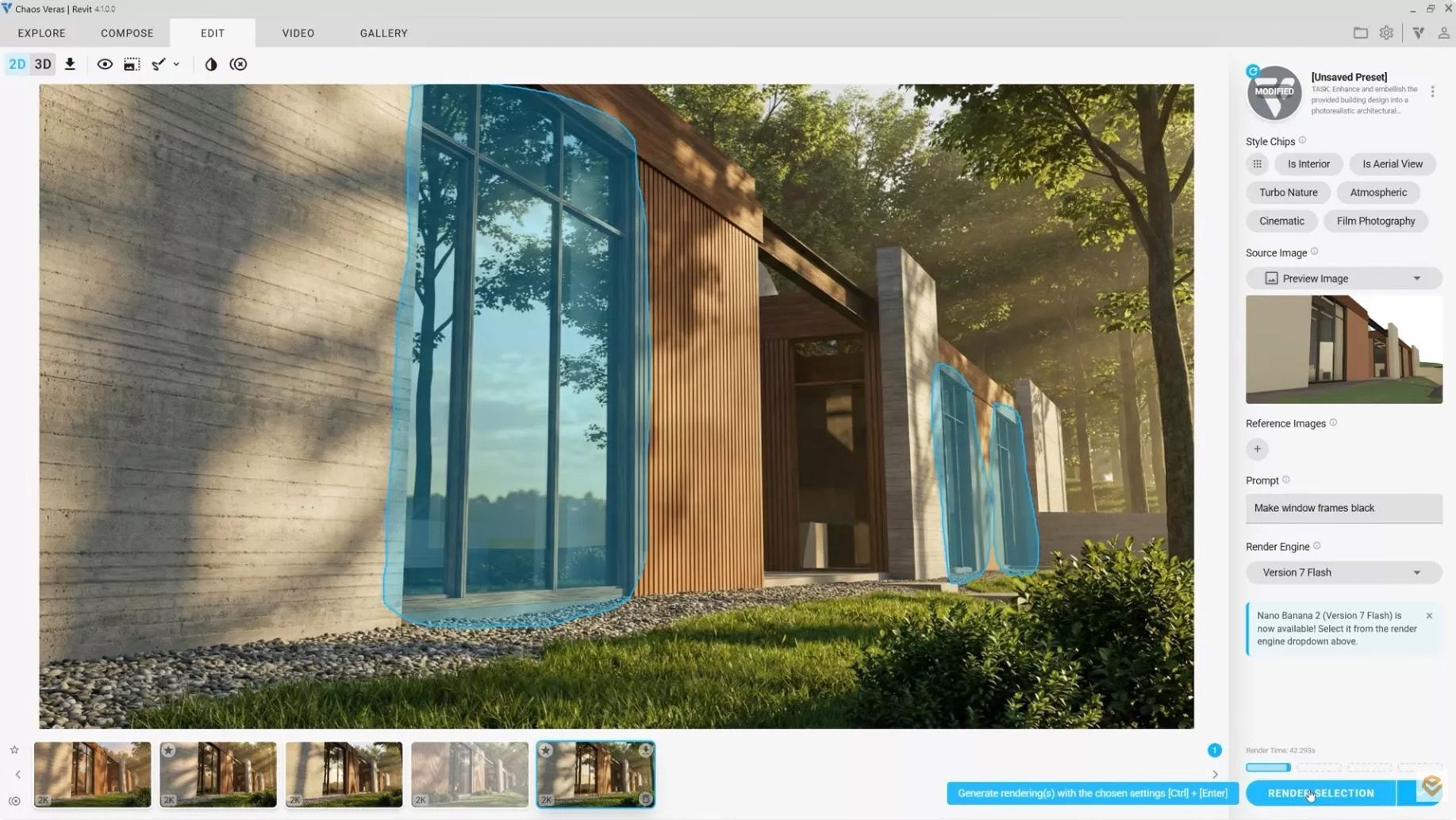
The controls are what make it usable in practice. A Geometry Override slider decides how tightly the render hugs your original model, so you can stay close to the design or let the AI explore further.
Render Selection lets you paint a region, for example the window frames, and re-render just that part with a new prompt.
In the screenshot above, the prompt “Make window frames black” is applied to the selected glazing while the rest of the render stays untouched.
Best for: Concept visualisation, client presentations and schematic design imagery.
Key features:
- Native Revit plugin (also works in SketchUp, Rhino, Forma, Archicad and Vectorworks)
- Prompt-based rendering with style chips for interior, aerial, cinematic and atmospheric looks
- Geometry Override slider and Render Selection for targeted re-renders
- Two engines: a premium quota-based engine and an unlimited standard engine
Pricing: Named licence $29 per month billed annually, or $59 per month billed monthly. Floating licence from $51 per month. Student licence $149 per year. A free trial includes 30 renders over 15 days.
Watch out for: Veras is a generative pass, not a ray-traced render. It is superb for early design and client meetings, but it is not the tool for photo-real precision or technical documentation.
2. TestFit: Feasibility Studies in Minutes
TestFit answers the question developers and architects ask before a project even starts: what can this site actually hold, and what is it worth?
You draw a site boundary, set zoning constraints, unit mix and parking ratios, and TestFit generates massing, unit layouts and parking in real time.
Move a setback line and the scheme regenerates. Change the unit mix and the yield updates instantly.
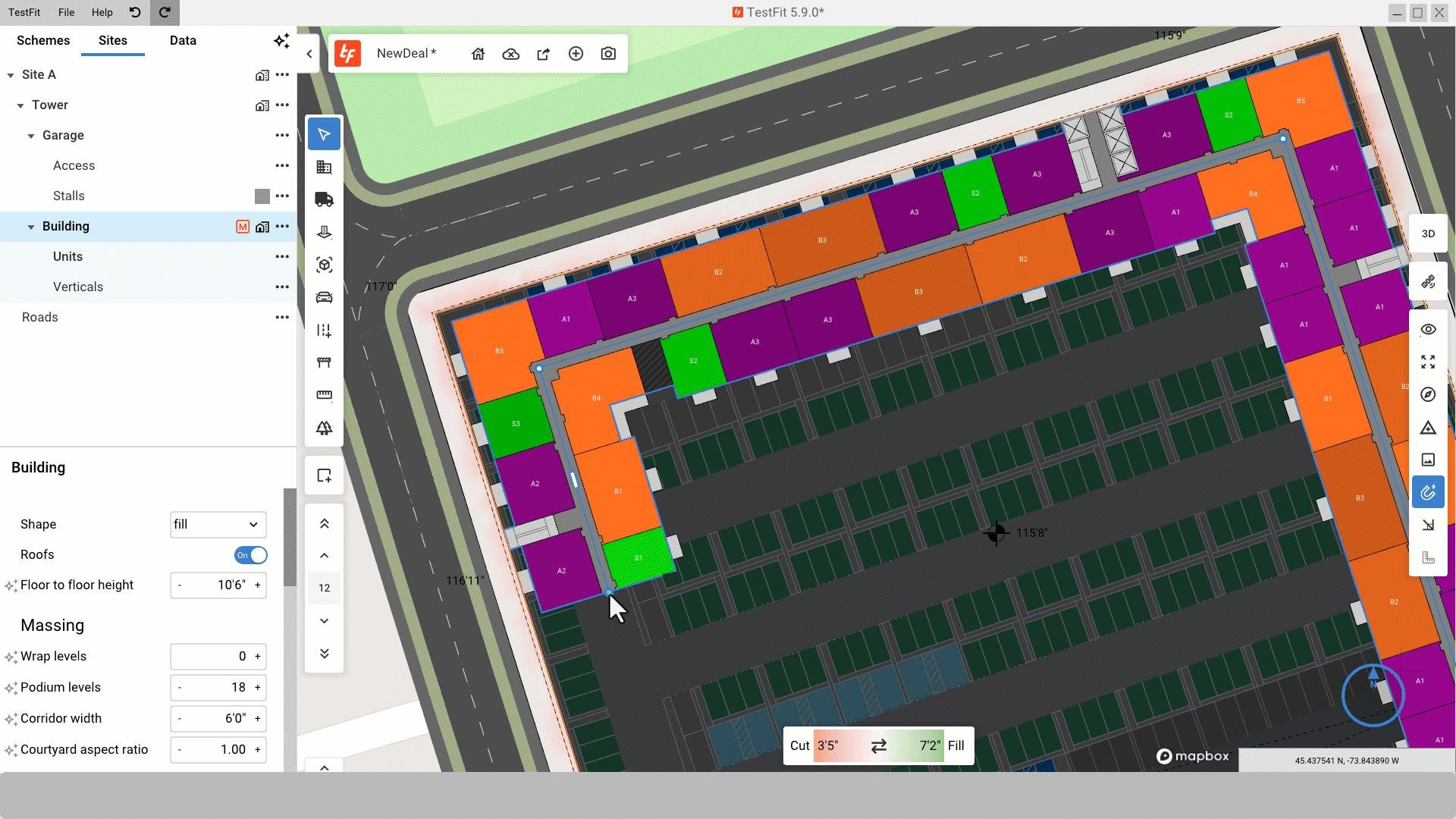
The reason TestFit earns its place here is the Revit bridge. Most generative tools stop at a pretty massing model; TestFit exports an approved scheme into Revit as the schematic baseline, so the feasibility work becomes the starting point of the real model instead of a separate exercise.
Firms report cutting feasibility studies from three weeks to around thirty minutes, and the platform is used by developers and architects on multifamily, hotel, retail and industrial sites.
Best for: Developers, feasibility-led practices and anyone who underwrites sites before designing them.
Key features:
- Generative site planning with zoning, parking and unit mix constraints
- Real-time yield, parking counts and pro forma feedback
- 2D and 3D massing with cut and fill analysis
- Export to Revit, plus an MCP connection for AI assistant workflows
Pricing: Parking Solver $195 per month billed monthly. Site Solver, which includes generative design, starts at $15,000 per year billed annually. Site Solver Portfolio starts at $20,000 per year. Add-ons include Site Intelligence (+$150/month) and Pro Forma (+$170/month).
Watch out for: This is a professional-priced tool aimed at firms doing regular feasibility work. For a single small project, the entry tier may not pay for itself.
3. Finch 3D: Generative Floor Plans from Massing
Finch takes a different approach from the image-based AI tools. It uses a graph-based generative system that maps spatial relationships between rooms, corridors, structural elements and building rules, then generates floor plan layouts from a massing model in seconds.
Because the output comes from spatial logic rather than pixels, the plans look like buildable layouts, not rendered concepts.
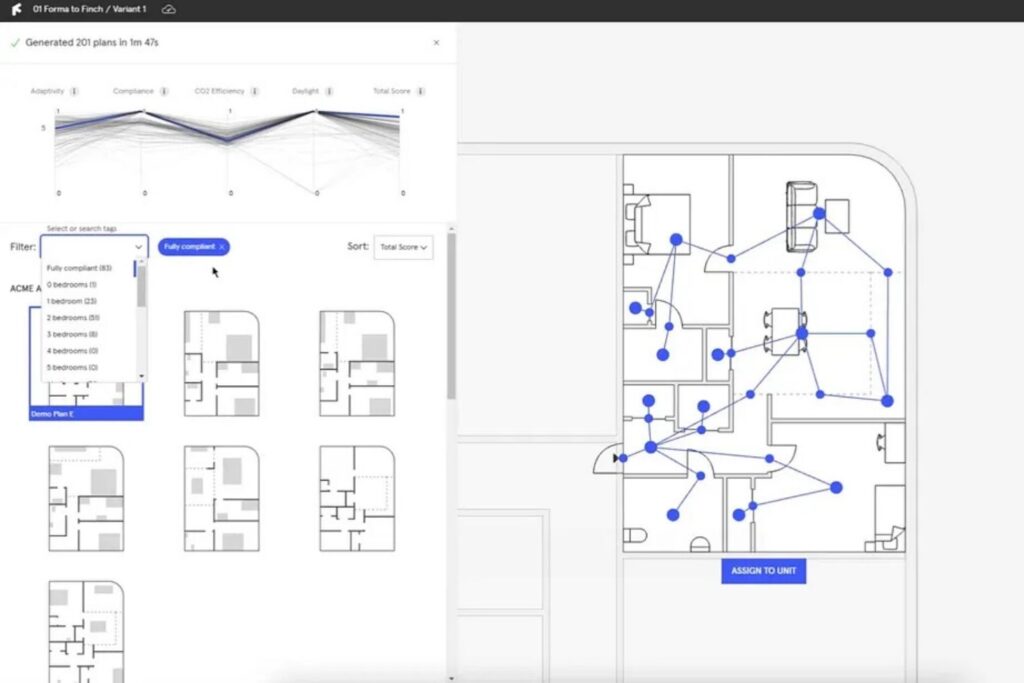
The Revit integration is two-way and genuinely useful: upload a Revit mass as the design envelope, generate and evaluate hundreds of layout options with live performance feedback on daylight, space efficiency and CO2, then download the chosen plan back into Revit as native BIM geometry.
That round trip is the whole point. You never redraw the AI’s output by hand.
Best for: Early-stage residential and multifamily design, layout optimisation and feasibility studies on repeatable typologies.
Key features:
- Graph-based generative floor plans from massing or site boundary
- Live performance metrics: daylight, space efficiency and CO2
- Two-way native Revit add-in (Revit 2023 to 2026), plus Rhino and Grasshopper
- Plan library that encodes firm standards, accessibility rules and local codes
Pricing: Free plan available (manual editing and Revit integration, without the generative engine). Basic plan from 79 euros per month with a 14-day trial. Enterprise from 14,500 euros per year for three seats.
Watch out for: Finch performs best on multifamily residential work with repeatable constraints. Bespoke or structurally complex projects return less time saving, and code compliance still needs human review before anything is construction-ready.
4. Glyph by EvolveLAB: Documentation Automation
If Veras saves time on rendering and TestFit saves time on feasibility, Glyph saves time where most Revit users actually lose it: documentation.
Glyph automates the repetitive documentation tasks that fill the last weeks of every project: creating views, building sheets, tagging by category, dimensioning across views, and packing sheets.
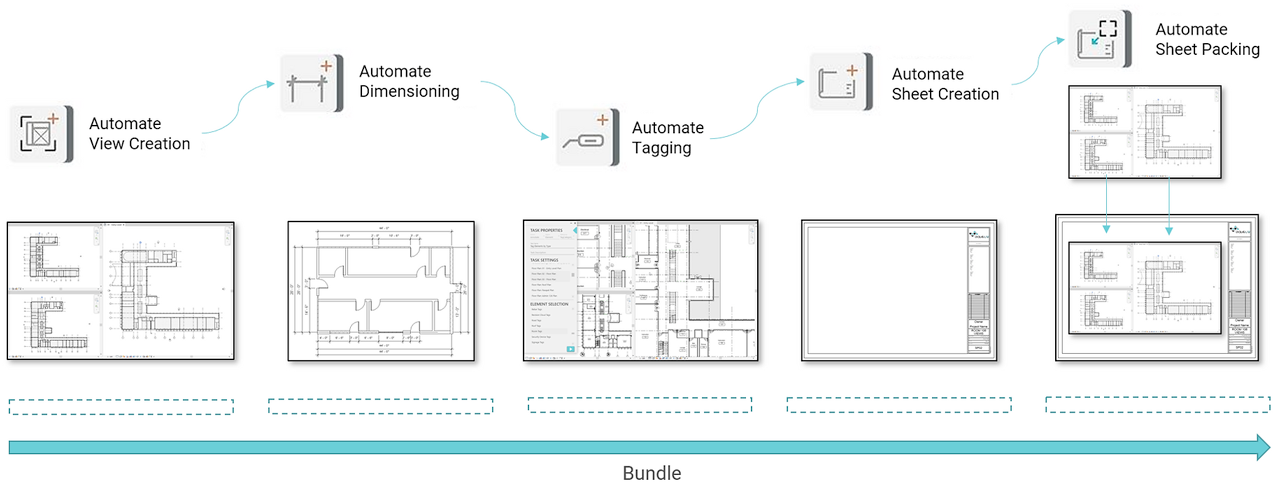
The standout feature is bundles. You chain several tasks into one bundle, for example create plans from levels, tag all doors, dimension the sheets and pack them, then run the whole bundle with a single click and share the same bundle settings across projects.
That is how firms turn documentation from a per-project scramble into a repeatable office standard.
Glyph also includes Copilot, an AI assistant for documentation workflows, and it is made by the same team behind Veras.
Best for: BIM managers, documentation-heavy practices and teams standardising drawing output.
Key features:
- View creation by level, scope box, room or category
- Sheet creation by level, scope box, room or Excel data
- Tagging and dimensioning by category across views and sheets
- Bundles that chain tasks and share settings between projects
- AI-powered Glyph Copilot for documentation workflows
Pricing: Named licence $97 per month billed monthly. Floating licence $88.50 per month billed annually ($1,062 per year). Student licence $99 per year. A 15-day trial is available.
Watch out for: Glyph rewards offices that invest an hour in setting up their bundles. Used one task at a time, it still helps, but the real payoff comes from standardising.
5. Pele AI: Talk to Revit in Plain English
Pele AI is the most approachable plugin on this list. Instead of learning commands or Dynamo scripts, you type what you want in plain English and Pele executes it in Revit.
It handles the repetitive tasks that eat a modeller’s day: tagging elements, generating views, organising sheets, adjusting parameters and graphically modifying elements.
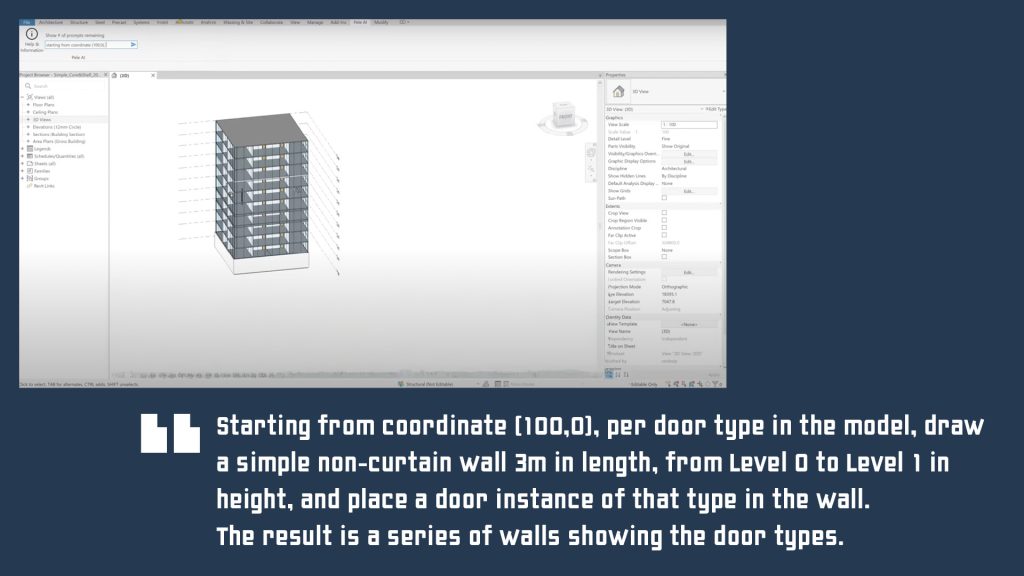
For example, prompts like “Make dimensions for the rooms in this plan view” or “Highlight clashes between ducts and beams in this 3D view” run directly against the model.
If a prompt is unclear, Pele reattempts it and then tells you to refine the input rather than failing silently.
It collects no data from your BIM models, only usage data about the prompts themselves, which matters for firms with strict data policies.
Best for: Beginners, small teams and anyone who types faster than they click through menus.
Key features:
- Natural language prompts that execute Revit operations directly
- Works with Revit 2021 to 2026, available through the Autodesk App Store
- Suggested prompts to help you phrase tasks well
- Pay-per-prompt bundles with no subscription, and no BIM data collection
Pricing: Free trial with 20 prompts. Paid bundles start at $20 for 250 prompts, with larger bundles available (a 500-prompt bundle costs $40). You buy more only when you run out.
Watch out for: Pele is an LLM front end over scripted operations. It excels at repetitive, well-defined tasks but struggles with complex multi-step work that needs spatial inference, and the quality of results depends on how clearly you phrase the prompt.
Quick Comparison
| Plugin | Best for | Revit integration | Starting price |
| Veras | AI rendering and visualisation | Native plugin | $29/month (annual) |
| TestFit | Feasibility and site planning | Export to Revit | $195/month |
| Finch 3D | Generative floor plans | Two-way native add-in | Free plan; 79 euros/month |
| Glyph | Documentation automation | Native plugin | $97/month |
| Pele AI | Everyday task automation | Native plugin | Free 20 prompts; $20/250 prompts |
Prices were checked in October 2026 from vendor pages and current reviews, and vendors change them, so confirm the latest price on the official site before buying.
How to Choose the Right Plugin
Start from the bottleneck, not the novelty. If client presentations eat your week, Veras pays for itself immediately. If you evaluate sites before designing, TestFit is the only tool here that turns feasibility into a Revit baseline. If early-stage residential layouts are your repeat work, Finch is built for exactly that. If documentation deadlines are the pain, Glyph standardises the grind. And if you are still learning Revit and want a productivity boost without learning Dynamo, Pele AI is the cheapest way in.
One honest note: none of these replaces Revit skill. They multiply it. Veras still needs a good model to render, Finch still needs a sound massing, and Pele still needs a user who knows what a correct output looks like. The plugins reward professionals who already understand the workflow; they do not substitute for that understanding. If you are still building that foundation, start with the Revit and BIM Certification Course or the Revit Training for Architects programme, and add plugins once the core workflow feels natural.
Learn Revit and BIM with ASDAV
| Flagship course | Professional Revit and BIM Course for Architects |
| Fee | Rs 50,000 |
| Also available | Online Revit Certification Program for Architects (Rs 38,000) |
| What you learn | Revit Architecture from fundamentals to advanced modelling, documentation, collaboration and BIM workflows |
| Why it fits this article | The plugins above accelerate a Revit workflow; these courses build the workflow itself, through live projects and mentor reviews |
Further Reading
- Top 12 BIM Software Every Architect Should Know
- Revit Course Fees in India for 2026
- How to Get a BIM Job in India as a Fresher in 2026
- Is BIM a Good Career in India? Salary, Scope and Future Opportunities
- 5 Best Revit Courses You Should Enroll in Dubai, UAE
- BIM Jobs in Dubai: Salary, Skills & Requirements
- Armada vs London Software Training vs Symetri vs ASDAV: Best Revit Course?
Conclusion
The best AI plugin for Revit is the one that removes your biggest bottleneck. Veras transforms visualisation, TestFit transforms feasibility, Finch transforms early-stage layouts, Glyph transforms documentation and Pele AI transforms everyday modelling tasks. Used together, they cover nearly the whole Revit workflow, from the first site test to the final sheet set.
Start with a free trial on the one that matches your pain point, measure the time it saves on a real project, and only then commit. AI in Revit is no longer a novelty to watch from the sidelines. It is a practical upgrade to the way architects already work, and the firms adopting it now are the ones setting the pace for everyone else.